Mark up screenshots,
hide what
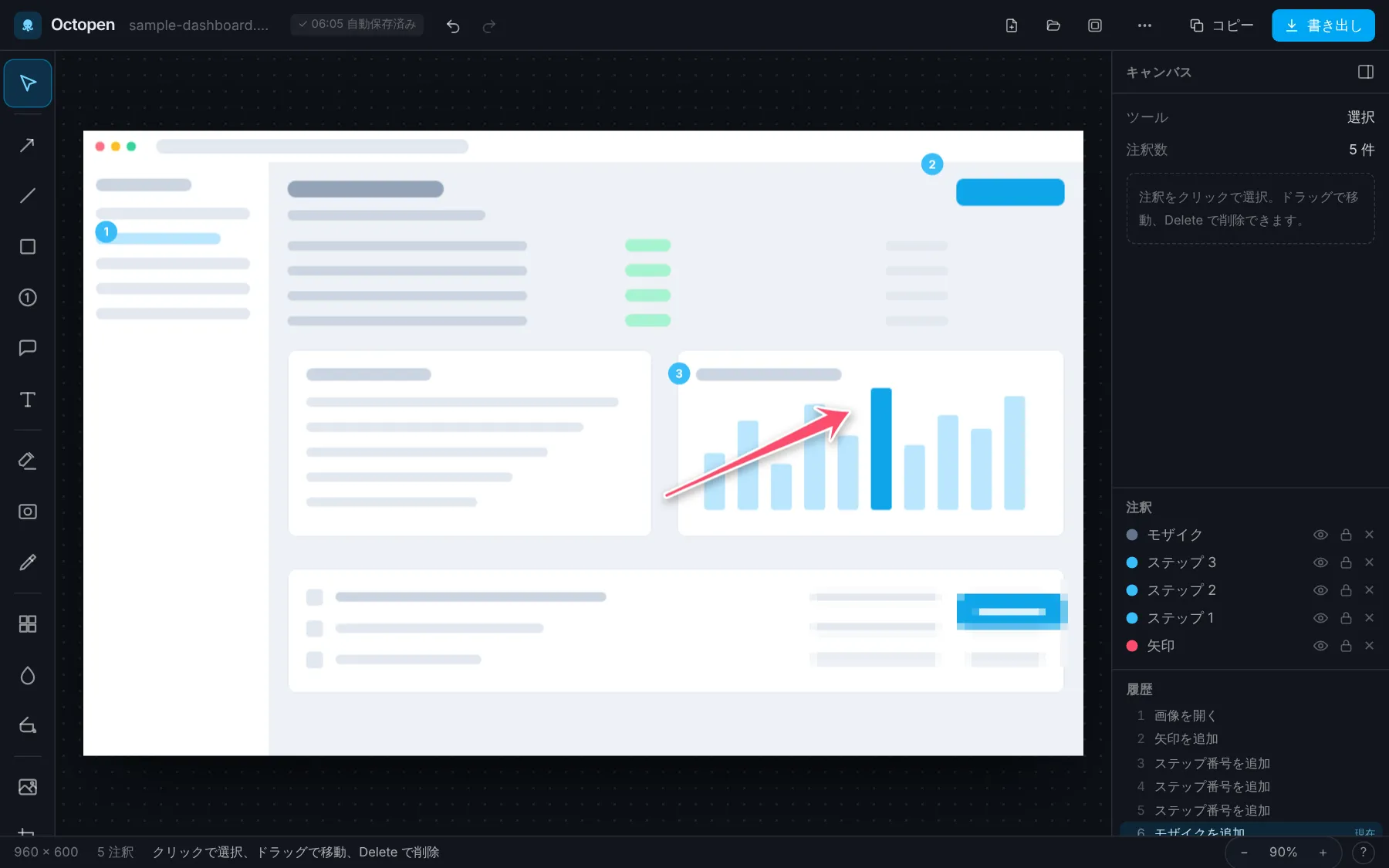
Octopen is a free image editor for marking up screenshots with arrows and numbers and pixelating anything you don't want to show. Your images are never uploaded; editing happens in your browser. There's nothing to install or sign up for.
- Opens
- PNG, JPEG, WebP, SVG, GIF
- Saves
- PNG, JPEG, WebP, SVG
- Image size
- Up to 80 MP each
- Sign-up
- Not needed
What it does
- Explain
- Arrows, lines and shapes. Text and callouts. Step numbers that count up on their own. Highlighter and freehand pen.
- Hide
- Pixelate or blur, or cover with solid black or white. A spotlight brightens just the area you want people to look at.How to pixelate an image →
- Polish
- Crop, resize and rotate. Rounded corners, padding, backgrounds and shadows, plus social sizes like 16:9 and 1:1.
- Combine
- Join several screenshots side by side, stacked or in a grid. Before/After layouts, layers, alignment and grouping.
- Export
- Save as PNG, JPEG, WebP or SVG. Copy to the clipboard and paste straight into Slack, Notion or GitHub.
Capture, paste, draw, send.
No app to launch and no files to save along the way. It starts and ends with your clipboard.
- 01Capture. Take a screenshot the way you always do, and copy it.
- 02Paste. Open the editor and paste.CtrlV You can also drag and drop or choose a file.
- 03Draw. Drag to place arrows, numbers and pixelation.ANM
- 04Send. Copy the image and paste it right into a chat or document.CtrlC
On a phone, pick a photo or screenshot, draw with your finger, then tap Save to add it to Photos or share it to your messaging apps.
Opens PNG, JPEG, WebP, SVG and GIF (as a still image). Press? to see every shortcut.
Nothing uploaded. Nothing to leak.
It's built so you can edit screenshots of internal documents or personal information as they are.See how it works → Privacy Policy Terms
- 01Nothing is sent anywhere. Opening, editing and exporting all happen on your device. Your image data never reaches a server or anyone else. Don't take our word for it. Open the editor and switch to airplane mode. You can still open, draw on and export images, start to finish.
- 02No account needed. No email address, no personal details. Open the page and start editing.
- 03You choose whether to keep your work. By default, a project in progress stays only while the tab is open and is deleted when you close it. Turn on “Keep my work in this browser” to pick up where you left off next time (work untouched for 30 days is deleted automatically). Either way, it never leaves your device.
How it differs from a typical online image editor
| How it differs from a typical online image editor | Octopen | Typical online service (general example) |
|---|---|---|
| Where your images go | Never uploaded (stays on your device) | Uploaded to a server |
| Size, number and usage limits | No limit on uses or images | Free plans often have limits |
| Sign-up | Not needed | Sometimes required |
| Waiting | No upload or download wait | Wait for the upload and download |
Last updated
Why it's free.
All image processing happens on your device, so there are almost no server costs. It is also built without expensive features, so right now you can use it for free, with no limits on how often you use it or how large your images are.
We plan to fund it with ads on the page. We will not rely on paid plans or feature limits.
FAQ
Is it really free?
Yes. Every feature is free. All image processing happens on your device, so there are no server costs and no need to limit how often you use it or how large your images are.
Are my images uploaded to a server?
No. Opening, editing and exporting all happen on your device, and your image data is never sent anywhere. Once the editor is open, you can turn off Wi-Fi and still open, edit and export images. If it works start to finish with no connection, that is the clearest proof it is not sending your images anywhere. You can also check for yourself in the network panel of your browser’s developer tools.
Is it safe to edit images in a browser?
It depends on the tool. Many image editors that open in a browser still upload your image to a server to process it. An easy way to tell: open the page, switch to airplane mode, and see whether you can still open, edit and save an image. Octopen never uploads your images and edits them only in the browser on your device, so it works start to finish in airplane mode.
Can I use it on a work computer?
Your images are never uploaded anywhere, so it fits with workplace rules against uploading files to outside services. Whether you may use it is still up to your workplace’s rules.
Do I need an account?
No. There is no email sign-up either. Just open the page and paste an image to start.
Which image formats are supported?
You can open PNG, JPEG, WebP, SVG and GIF (as a still image), and export to PNG, JPEG, WebP and SVG.
Does it work on phones and tablets?
Yes. Pick a photo or screenshot, then trace with your finger to place arrows, boxes and pixelation. Pinch to zoom, and long-press an annotation to duplicate or delete it. When you are done, tap Save to add the image to Photos or share it to your messaging apps. Detailed work with keyboard shortcuts is more comfortable on a computer.
Where is my work saved while I edit?
It is saved automatically in your browser, on your device, and is never sent anywhere. By default it stays only while the tab is open (reloading is fine; closing the tab deletes it). Turn on “Keep my work in this browser” in Projects to pick up where you left off after closing the tab. You can also export a project file to back it up or move it to another device.
Is it safe to edit images with confidential information?
Yes. Your images never leave your device, so you can edit screenshots of internal documents or personal information with confidence. Pixelation, blur and fills all happen on your device too.